
A Windows VPS (virtual private server) or RDP (Remote Desktop Protocol) server is a Windows computer that lives in a data centre and that you control over the internet. You see its desktop on your own laptop, phone or tablet, and it keeps running when you close your device. For businesses, that makes it a practical way to run Windows-only software, give a team a shared desktop, keep a tool online all day or work with a server that has a fixed address in a particular country.
This guide explains what a Windows VPS is and how it differs from RDP, what to look for in a plan, how to connect from different devices, how to secure it properly and how to avoid the most common mistakes. It is written for business owners and small teams, not just for technical specialists.
What is a Windows VPS?
A VPS is a slice of a powerful physical server, separated by virtualisation so that it behaves like a computer of its own. A Windows VPS runs a Windows Server operating system. You get your own memory, processor share, storage and a dedicated IP address, and you are not affected by what other customers do on the same hardware.
Compared with shared hosting, you have far more control: you can install the software you choose, change settings and run background services. Compared with buying and maintaining a physical server, you avoid the hardware, electricity, cooling and connectivity costs, and you can upgrade by changing plan.
What is RDP, and is it the same thing?
RDP stands for Remote Desktop Protocol, the technology Windows uses to show a remote desktop on your screen. In everyday language people say "Windows RDP" or "buy RDP" to mean a Windows server that you access by Remote Desktop. A Windows VPS accessed by RDP and a "Windows RDP" plan are usually the same kind of product, sold with different names. The details that matter are in the plan: the resources, the number of users, the location and what administrator access you get.
| Term | What it usually means |
|---|---|
| Windows VPS | A virtual Windows server with its own resources and IP address |
| Windows RDP | A Windows server you reach with Remote Desktop; often sold as a VPS |
| Dedicated server | An entire physical machine for you alone; more expensive |
| Cloud desktop | A managed desktop service with its own tools; often priced per user |
What businesses use a Windows VPS or RDP for
- Running Windows-only software such as accounting packages, line-of-business tools or older applications that do not run on a Mac or phone.
- A shared work desktop where several authorised team members use the same environment and files.
- Remote access to your work desktop from any device, so you can pick up where you left off.
- Hosting an internal dashboard or reports that must be available all day.
- A fixed IP address in a chosen region for services that expect a stable address.
- Testing and development on Windows without buying a second computer.
Use the server only for lawful business purposes and follow the terms of any service you connect to. A VPS gives you control and responsibility in equal measure.
How to choose a plan
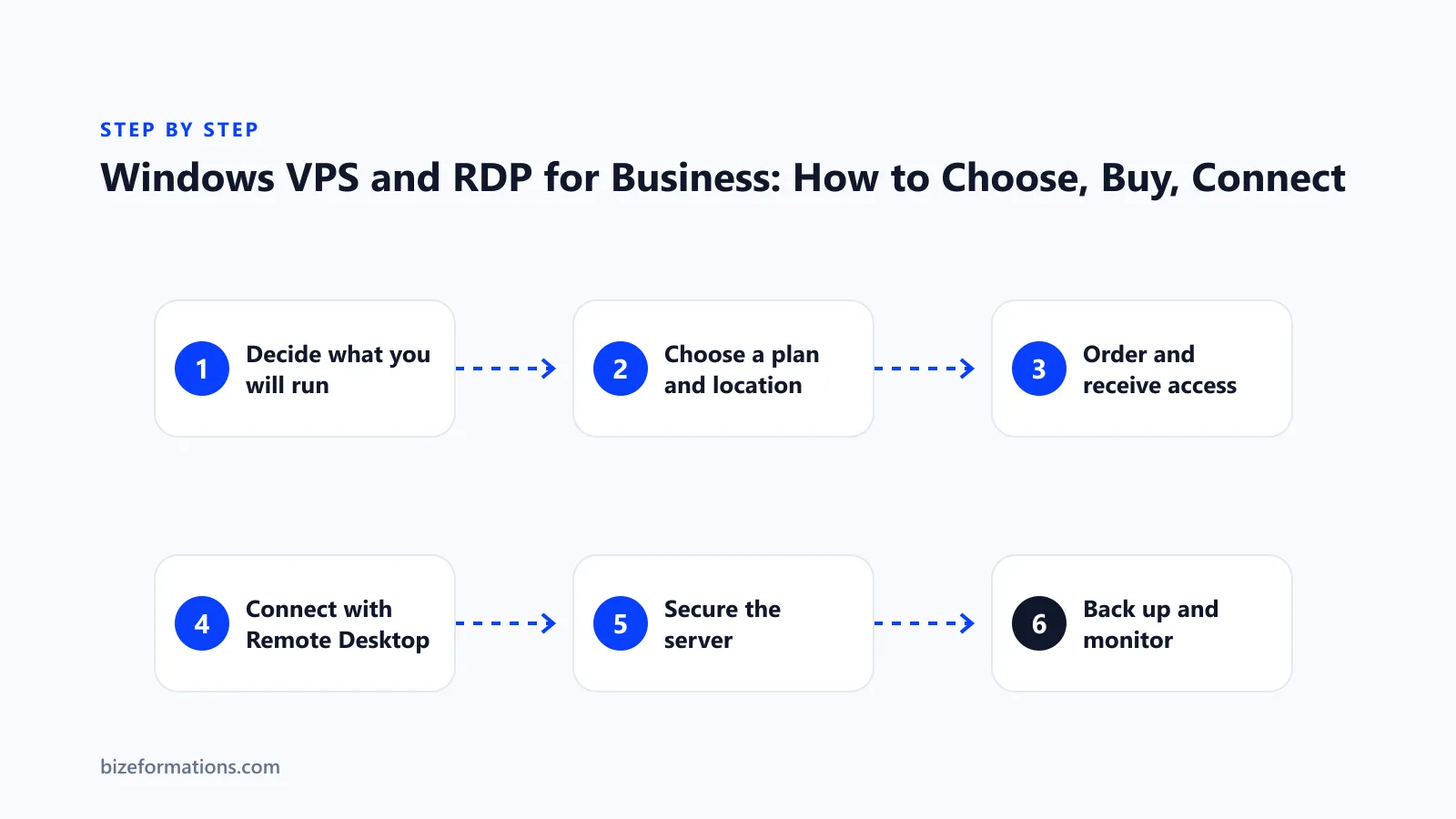
1. Decide what you will run
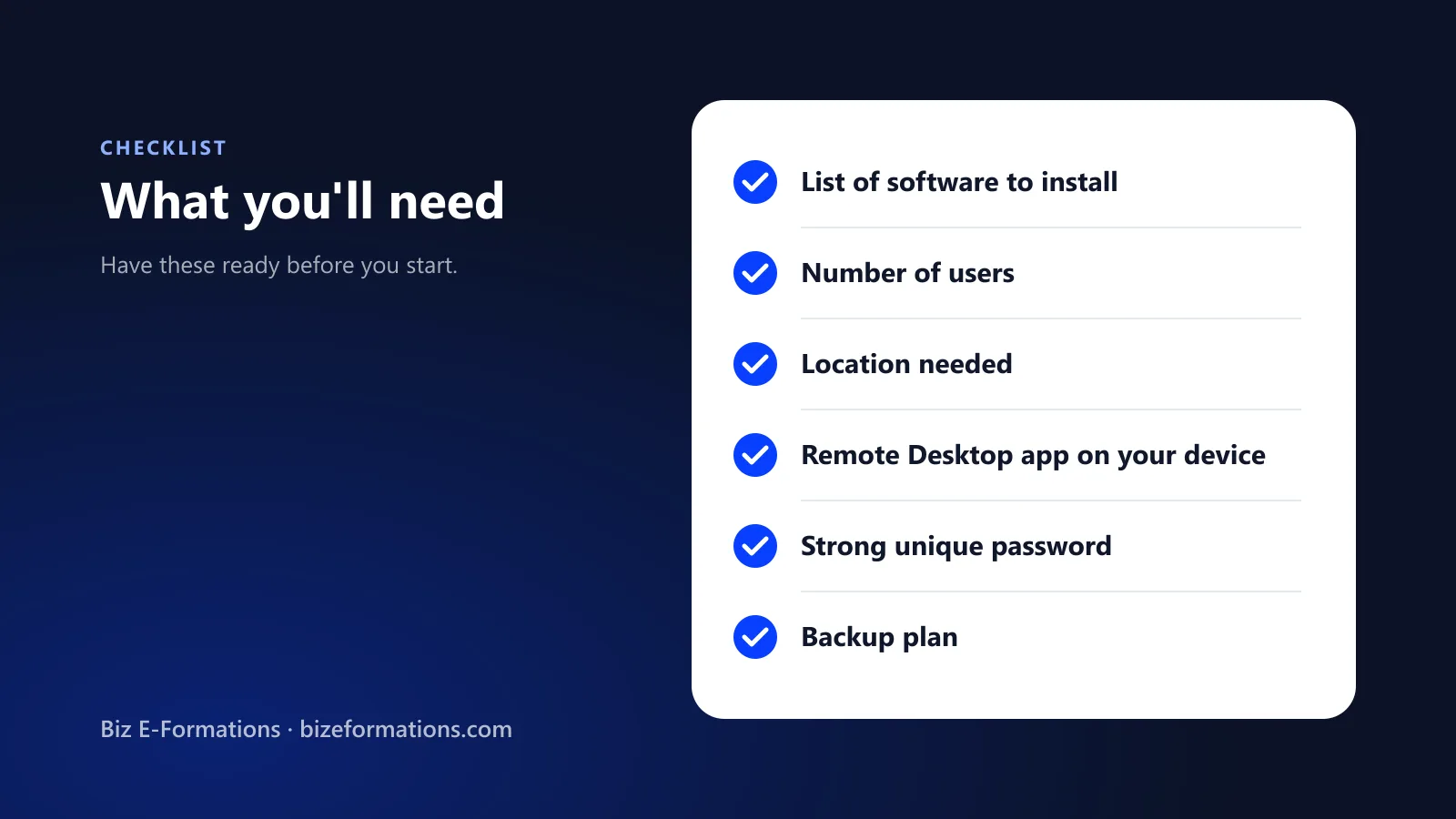
Write down the software and the number of people who will use the server at the same time. A single light application for one user needs far less than several desktop programs used by a team. Ask the software vendor for its recommended memory and storage; this is the most reliable guide.
2. Memory (RAM)
Windows Server itself needs a few gigabytes before your software even starts. As a rule of thumb, light use by one person is comfortable with a modest amount of memory, while multiple users or heavier applications need considerably more. It is cheaper to choose one level above your estimate than to suffer a slow server.
3. Processor cores
More cores help when several programs or users work at once. Single heavy tasks benefit more from faster cores than from many of them.
4. Storage
Solid-state storage makes Windows and most applications feel much faster than traditional disks. Leave room for updates, logs and growth, and remember backups need space as well.
5. Location
Choose a data centre close to the people who will use the server for the best response time, or in the country where you need your server's IP address to appear. Our Windows VPS and RDP plans are available across data centres in the United States, the United Kingdom and the Netherlands, so you can pick the location that suits you.
6. Network and IP address
A dedicated IP address is standard on a good plan and is important if anything you run depends on a stable address. Check bandwidth and any fair-use limits if you transfer a lot of data.
7. Administrator access
You want full administrator access so you can install software and configure the server. Confirm this before buying. Our plans include full administrator access.
8. Setup speed and support
Instant or near-instant setup means you can start the same day, and responsive support matters when something goes wrong at an awkward moment.
How much does it cost?
Prices depend on resources and location. Our Windows VPS and RDP plans start from $13 a month; check the plans page for the current options and what each includes. When comparing providers, look beyond the headline price: ask whether the Windows licence is included, whether the IP address is dedicated, whether there are bandwidth limits and what happens when you need to upgrade.
How to order and get access
- Choose your plan and location.
- Complete the order and payment on the plan page.
- You receive the server's IP address, the administrator username and a temporary password, usually by email or in your account.
- Connect for the first time and immediately change the password and apply the security steps below.
How to connect to your Windows VPS
From a Windows computer
- Open the Start menu and search for "Remote Desktop Connection".
- Type the server's IP address in the Computer box and click Connect.
- Enter the administrator username and password.
- Accept the certificate prompt the first time you connect.
From a Mac
Install the free Microsoft Remote Desktop app from the Mac App Store, add a new PC with the server's IP address, enter your credentials and connect.
From a phone or tablet
Install the Microsoft Remote Desktop app for iOS or Android, add the server and sign in. A larger screen and an external keyboard make longer sessions more comfortable.
Tips for a smooth session
- Use a stable internet connection. RDP is forgiving, but video-heavy work needs good bandwidth.
- Use the display and resource settings in your Remote Desktop app to match your screen.
- Disconnecting leaves your session running; signing out closes it. Know which you want.
How to secure your Windows VPS
A server exposed to the internet is tested by automated attacks within minutes. Security is not optional, and it is mostly straightforward. Work through this checklist on day one:
- Change the default password immediately and use a long, unique passphrase stored in a password manager.
- Rename or disable the default administrator account where possible and create a separate named account for each person.
- Use Network Level Authentication, which makes users authenticate before a full session opens. It is enabled by default on current Windows Server versions; confirm it.
- Limit who can connect. Use the Windows firewall to allow Remote Desktop only from the IP addresses you use, where practical.
- Consider changing the default Remote Desktop port or placing the server behind a VPN. Changing the port is a minor obstacle, not a substitute for the other steps.
- Turn on account lockout after several failed sign-in attempts to blunt password guessing.
- Keep Windows updated. Install security updates promptly and restart when required.
- Install only what you need. Every extra program is another thing to patch.
- Use antivirus and keep it updated. Windows Security is built in and adequate for many uses.
- Avoid browsing and downloading randomly on the server. Treat it like a work machine, not a personal one.
Backups and monitoring
Backups are the difference between an inconvenience and a disaster. Plan for three kinds of loss: a deleted file, a damaged system and a lost server.
- Files. Keep your important work in a synchronised folder or a cloud drive, not only on the server.
- System. Take a snapshot or image before major changes and on a regular schedule if your plan supports it.
- Off-server copy. Keep at least one backup somewhere other than the server itself, and test restoring from it.
- Monitoring. Check disk space, memory and processor usage from time to time, and set up simple alerts if your tools allow it.
Common mistakes to avoid
- Choosing the cheapest plan and then running out of memory in the first week.
- Leaving the default administrator password unchanged.
- Sharing one login among several people, so nobody can tell who did what.
- Ignoring updates for months.
- Storing the only copy of important data on the server.
- Forgetting that software has its own licence terms; a Windows server does not automatically license every program you install.
Windows VPS versus your own PC or a cloud desktop
| Question | Windows VPS | Your own PC | Managed cloud desktop |
|---|---|---|---|
| Always on | Yes | Only if you leave it running | Yes |
| Access from anywhere | Yes | Needs extra setup | Yes |
| Control | Full administrator control | Full | Often limited |
| Upkeep | You manage updates and security | You manage everything | Mostly provider-managed |
| Cost | Low monthly fee | Hardware, power, internet | Often higher per user |
A VPS alongside your company setup
Many of our customers run a Windows VPS for the tools behind their business while using our other services for the company itself: a US LLC, EIN, registered agent and address, bank and payment accounts. If you are building the whole stack, start with company formation, then add bank and merchant accounts and a server that fits your tools.
Sizing examples: how much server do you need?
Use these as starting points, then adjust using your software vendor's recommendations and your own testing. They describe typical needs, not exact specifications.
| Workload | Typical users | Suggested resources | Notes |
|---|---|---|---|
| One light business application or a personal remote desktop | 1 | Modest memory, 1 to 2 cores, solid-state storage | Fine for office tools and light browsing |
| Accounting or line-of-business software for a small team | 2 to 5 | More memory, 2 to 4 cores | Memory is usually the first limit you hit |
| Several desktop programs and a shared file area | 5 to 10 | High memory, 4 or more cores, extra storage | Plan Remote Desktop licensing for multiple users |
| Dashboards, reports and background jobs | Few users, always on | Memory and storage matter more than cores | Schedule heavy jobs outside working hours |
If you are between two plans, take the larger one for the first month, watch real usage in Task Manager and then step down if you are comfortably under capacity. Moving up and down is easier on a VPS than on physical hardware.
Your first hour on a new server
A calm, ordered first hour prevents most problems later. Work through these steps in order:
- Connect and change the administrator password. Do this before anything else.
- Run Windows Update and restart until no more updates are offered.
- Set the time zone and region so logs and scheduled jobs use the right time.
- Create named user accounts for each person and remove any you do not need.
- Check the firewall. Confirm Remote Desktop is allowed only as you intend and everything else is closed.
- Install your software and test it with a normal workload.
- Set up backups and run a first one straight away.
- Write down the configuration: IP address, accounts, installed software and licences, in a place you control.
Keeping the server fast
- Remove startup clutter. Disable programs that start automatically but you do not use.
- Turn off unneeded visual effects. A simple desktop is faster over a remote connection.
- Close sessions properly. Signing out frees memory that a disconnected session keeps using.
- Watch disk space. A full disk slows Windows down and can stop updates from installing.
- Schedule heavy tasks such as backups and scans for quiet hours.
- Restart periodically, for example after monthly updates, to clear accumulated memory use.
Licensing basics you should know
Windows Server includes the right for administrators to connect remotely for management. If several people will use the server as a working desktop at the same time, Microsoft's Remote Desktop Services licensing normally applies, and individual programs also have their own licence terms. Ask your provider exactly what is included in the plan and what you must license yourself, and keep the paperwork. Being clear on this at the start avoids unpleasant surprises later.
Troubleshooting common connection problems
| Problem | Likely cause | What to try |
|---|---|---|
| Cannot connect at all | Wrong IP, firewall block or server restarting | Check the IP address, try another network, wait a few minutes and check the provider panel |
| Password rejected | Wrong account name or recently changed password | Type the username carefully, including any domain or server prefix, and reset from the provider panel if needed |
| Black screen after sign-in | Display setting or a stuck session | Reconnect with a lower display setting, or sign out of the old session from the provider panel and try again |
| Slow or laggy session | Distance, busy server or poor connection | Check Task Manager on the server, close heavy programs, try a closer location if lag persists |
| Disconnects often | Unstable internet or session time limits | Use a wired or stronger connection and review session limits in the server settings |
| Certificate warning | First connection or changed server identity | Verify the IP is yours, then accept; investigate if it appears unexpectedly later |
Controlling cost and planning upgrades
- Review resource use every month. If memory and processor are rarely above half, you may be able to choose a smaller plan.
- If usage often touches the limit, upgrade before it hurts productivity.
- Remove test installations and old files; storage is an easy place to waste money.
- Compare billing options if you plan to run the server for a long time.
Responsible use and compliance
A VPS is a powerful tool and its owner is responsible for what it does. Use it only for lawful business activity, keep software licensed, respect the terms of any websites and services you connect to, and protect personal and customer data. If your business handles sensitive data, apply the extra protections your industry or local law requires, such as encryption, access logs and stricter account controls.
Three scenarios in more detail
Scenario 1: Accounting software for a small finance team
A small company runs a Windows accounting package that its three bookkeepers use every day. Hosting the software on a Windows VPS means everyone opens the same data from home or the office, the files live in one place and updates are applied once. The team needs enough memory for several simultaneous sessions, solid-state storage for speed and nightly backups. They also need proper user accounts so every change in the software can be traced to a person.
Scenario 2: A remote desktop for one founder
A founder travels often and wants the same desktop everywhere, with documents, spreadsheets and a few Windows-only tools. A modest plan in a data centre close to their usual location is enough. The priorities are a strong password, two-factor protection on the email used for the account and a regular backup of the documents folder.
Scenario 3: An internal dashboard that must stay online
A business runs reports and scheduled jobs that pull data from several systems and publish a dashboard for managers. The server mostly works alone, so processor and memory are less important than reliability: automatic updates scheduled out of hours, monitoring for disk space and a tested restore procedure.
Choosing the Windows version
Providers usually offer one or more recent Windows Server versions. A newer version generally receives security updates for longer and supports current software better; an older version can be a requirement if your application has not been tested on the latest release. Ask your software vendor which version they support, choose the newest one that they support and avoid versions that no longer receive updates.
Protecting data and working with a team
- Write a short access policy. Who may connect, from where, and what they may install.
- Use named accounts only. Shared logins make incidents impossible to investigate.
- Remove access quickly when people leave or change roles.
- Keep confidential data in controlled folders and limit who can read them.
- Log and review. Check sign-in records regularly for unfamiliar activity.
- Keep personal and customer data lawful. If you hold personal data, follow the data protection rules that apply to you, including how long you keep it.
A simple maintenance schedule
| How often | What to do |
|---|---|
| Daily | Make sure the server is reachable and the nightly backup finished |
| Weekly | Check disk space, memory use and sign-in logs; restart if updates are waiting |
| Monthly | Install security updates, review user accounts and test restoring one file from backup |
| Quarterly | Review the plan size, remove unused software and rotate important passwords |
| Yearly | Test a full restore, review licences and decide whether to keep or change the plan |
Fifteen minutes on a regular schedule prevents most emergencies. Put the tasks in a shared calendar so they happen even when you are busy.
Conclusion
A Windows VPS or RDP server is a flexible, affordable way to give your business a remote Windows machine that is always available. Choose resources that match your software, pick a location close to your users, connect with the free Remote Desktop app and, above all, secure and back up the server from day one. Do those few things and it will quietly do its job for years.
Get in touch
Not sure which plan fits your software? Contact our team, chat with Biz AI on this page, or view the Windows VPS and RDP plans.
